Comprehensive Guide: TaxonWorks Docs | Nomenclature
The "New Taxon Name" task
To add taxon names and synonymy, we use the "New taxon name" task.
You can use this task not only to add a new taxon name, you can also view or edit existing names by entering search terms in the field in the top-right.
By default, "autosave" is activated and everything you enter will be saved automatically. You get notified about saving by the "ping" noise.
Adding the species name
Start by adding the species epithet in the "name" field.
Important: You should enter the species name with the same grammatical ending as in its original combination (= basionym, or protonym in TaxonWorks wording). TaxonWork will adjust the grammatical ending for each subsequent combination:
A species that was described as Cleonus obsoletefaciatus (Cleonus is gramatically male) will automatically become "obsoletefasciata" when combined with the genus name Asproparthenis (grammatically female).
In the "Parent" field, you select the parent taxon where it is currently placed, where YOU want to place the taxon. The original combination, as well as other subsequent combinations, will be added later! For species, the parent could be either a genus or a subgenus. Be as specific as possible.
For synonyms, the parent is always the same as for the valid name.
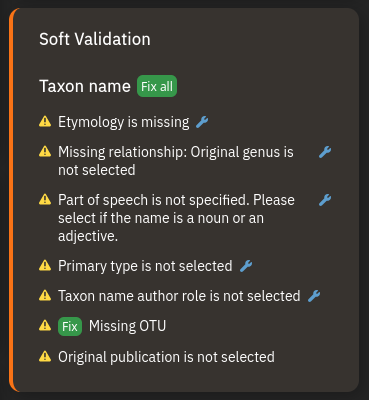
Soft Validation
As you create the taxon name, a notification about "Soft Validation" will immediately pop up. It is informing you about missing entries or contradictions in what you entered. It's always good to pay attention to this.
Most importantly, you have to add a corresponding OTU to your new TaxonName. Do this simply by clicking the green "Fix" button.
All other issues will be resolved by themselves as we continue to fill out the form.
Once the OTU has been added, all subsequent changes will be live-updated on TaxonPages. It’s good practice to follow along to make sure everything appears correctly.
Authorship
Start by adding the source for the original description. You can search for the source using parts of the author names, the year, but also parts of the title. If you can't find the source, add it using the "New Source" task. After adding the source, add the page number(s).
When entering species names from a list, it's good practice to check the source to verify the original spelling of the name as well as the page number. If the source is lacking a DOI or Biodiversity Heritage Library (BHL) link, you should add it. To edit the source, you can quickly open it in the "New Source" task from the radial navigator (the circle with the pointer {radial-navigator}). Open the link in a new tab for convenience.
The author of the source is not necessarily the author of the species name: In most cases, you can go to the "Person" tab and clone the author from the source. If the author is a different person, enter the name.
Theoretically you could add author and year of the species name as text in the "Verbatim" tab. Don't do it: This won't link to the source for the original description, and the author name will not be linked to a person. This can also result in inconsistent spellings of the author name.
Status and Relationships
Don't mess around here if you're not familiar with the International Code of Zoological Nomenclature!
The "Status" block is for the nomenclatural status of the name (e.g. unavailable). Usually I choose the right category directly from "Show all", to be as specific as possible.
It's very important to cite a source for the Status you just created. To do this, click the radial annotator (the circle with many facets, {radial-annotator}). If you know the source was the first one that revealed the status/synonymy, tick the box for "Is original"
The "Relationship" block is for the relationship (synonymy) with other names. Always go from the invalid name to the valid name: Enter nothing here if the name is valid. Instead, go to the invalid name, and add e.g. "junior subjective synonym".
Both for Status and Relationship: You really should cite a source. If you know the source was the first one that revealed the status/synonymy, tick the box for "Is original"
Very often, the same information can be entered with various levels of detail. For example, a homonym could be entered in the Status block simply as homonym, without specifying the other identical name. It can also be entered at the Relationship block by entering the other taxon with the same name, then specify the relationship. You can use "Homonym of" or even something as specific as "Forgotten primary homonym of".
Type
For the tutorial we'll use the Comprehensive form. It can be opened in a new tab for convenience.
Scroll all the way down to the "Type Material" block. Your species name will already be selected, but you'll have to specify what kind of type you're adding.
You can make an entry just based on the original description, without access to the actual specimen. When adding syntypes, make sure to use use singular Syntype when referring to one particular syntype but plural Syntypes when entering data for all of them. Add the original description as source (otherwise you could add a source that contains information on type material). Enter the type locality into the "Locality" field beneath Verbatim in the Collecting Event block.
Additionally, you can add a geographic area (such as a country) or a Georeference
Important: Everything beneath Verbatim stays verbatim. If you enter coordinates here, they won't show on a map.
In Repository, don't enter a museum based on assumptions that type material by author X should be in museum Y. But you can enter a repository if the original description clearly states that the types are deposited there.
Otherwise, you can enter a type from secondary literature (cite it in the Type block) or from a museum specimen (make sure to enter the Museum as Repository).
Amazon between Manaus and Itacoatiara, 14.05.1895, To be continued soon!
Do I have to fill in everything?
No. You can leave fields empty. The following blocks should never stay empty:
- Taxon
- Author
- Original combination and rank
- Gender and form
And remember to create an OTU for your new name (see above)